How to add a survey to your Shopify Thank You page (no code, any plan)
By Peter Coolen · · 5 min read
You can add a survey to the Shopify Thank You page on every plan, including Basic, in about two minutes. You don’t need Shopify Plus, a developer or a theme edit: since Shopify’s checkout extensibility, survey apps add a block to the page through the checkout editor, after the order is placed. This guide shows the exact clicks, what to ask first, and how to check it works.
Why the Thank You page, and not checkout or email
The Thank You page is the moment right after payment. The customer is still on your site, the order is done, and nothing you show can get in the way of the sale. That’s why it gets the highest response rates of any survey placement: thank-you-page surveys typically see 30–50% of customers answer, while an email survey a week later is usually in single digits.
Checkout itself (the information, shipping and payment steps) can only be changed on Shopify Plus, and asking questions there costs conversions. So on any plan, the Thank You page is where a post-purchase survey belongs.
What you need
- A Shopify store on any plan (Basic, Shopify, Advanced or Plus)
- A survey app that adds a Thank You page block. This guide uses Cool& Post Purchase Survey (free to start); the steps are the same for any app built on checkout extensibility (see Shopify survey apps compared)
Step 1: install the app
Open the App Store listing and click Install. The app asks for read-only access to your languages, markets, products and customers (to show the right survey to the right buyer) and orders (to hand them to Shopify Flow). It never changes anything in your store.
Step 2: pick a survey
On the app’s Recipes page, choose a ready-made survey and click Install. Start with “How did you hear about us?”: three questions, with a follow-up that asks which podcast or creator when someone picks those options. Every word is editable, and you can add questions, drag them into order and click through the live preview.
Copy the survey’s Form ID from the top of the editor; you’ll paste it in the next step.
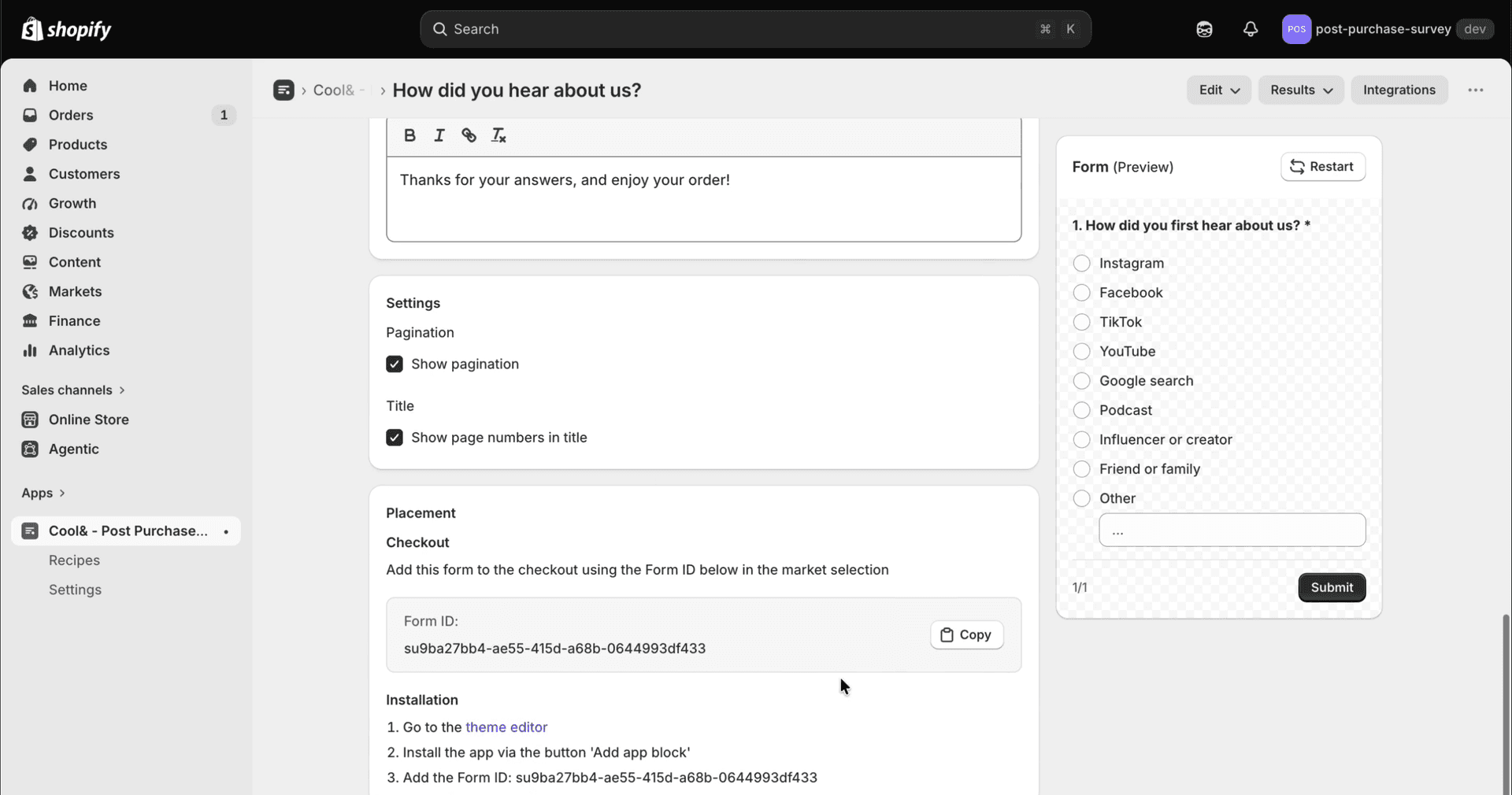
Step 3: add the block to the Thank You page
- In Shopify admin, go to Settings → Checkout.
- Click Customize next to your current checkout configuration.
- In the page dropdown at the top, switch from Checkout to Thank you.
- In the left sidebar, click Add app block and choose Cool& - Post Purchase Survey.
- Paste the Form ID into the block’s settings and drag the block to where you want it (above or below the order summary both work; above gets more answers).
- Click Save.
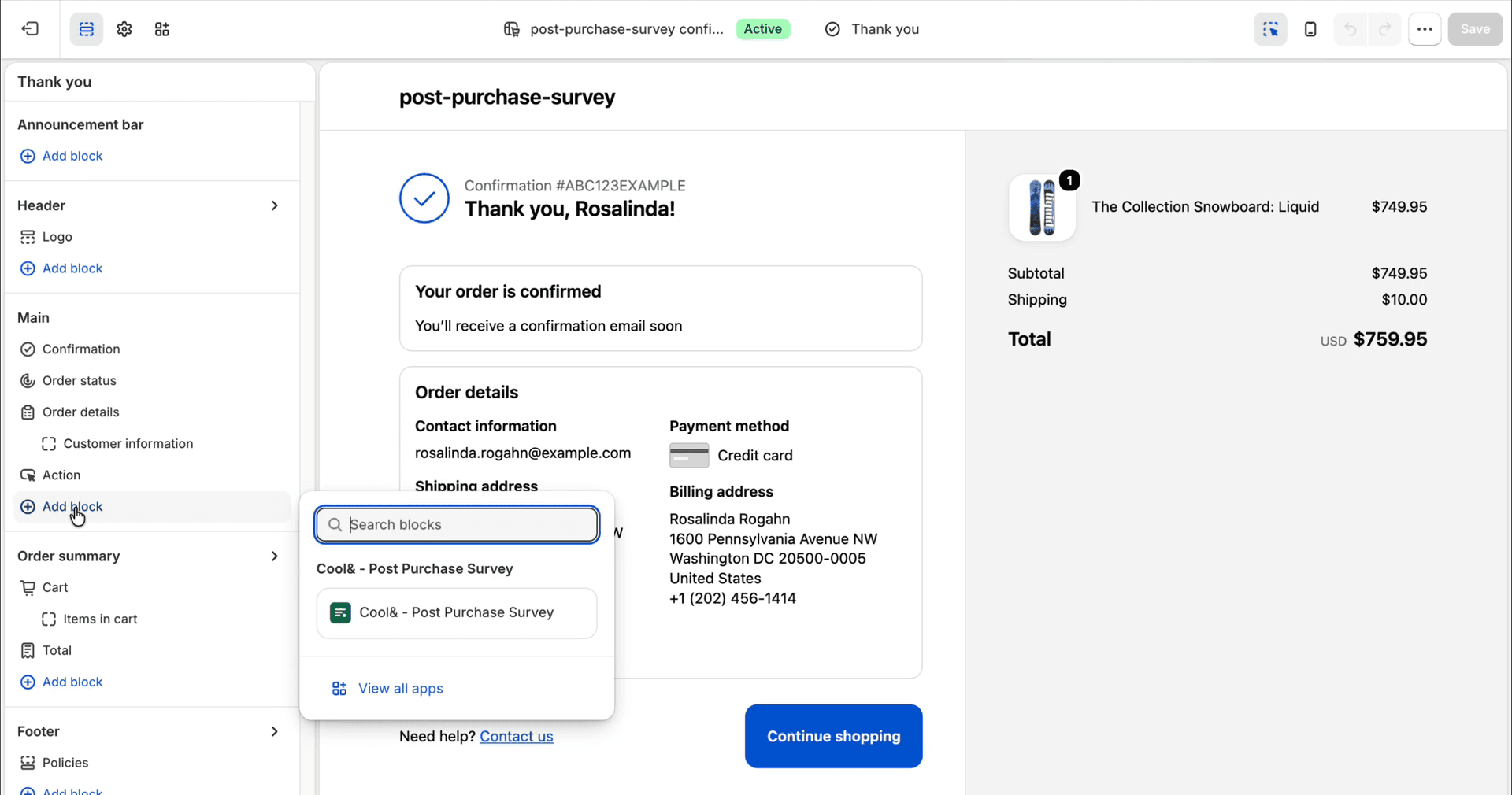
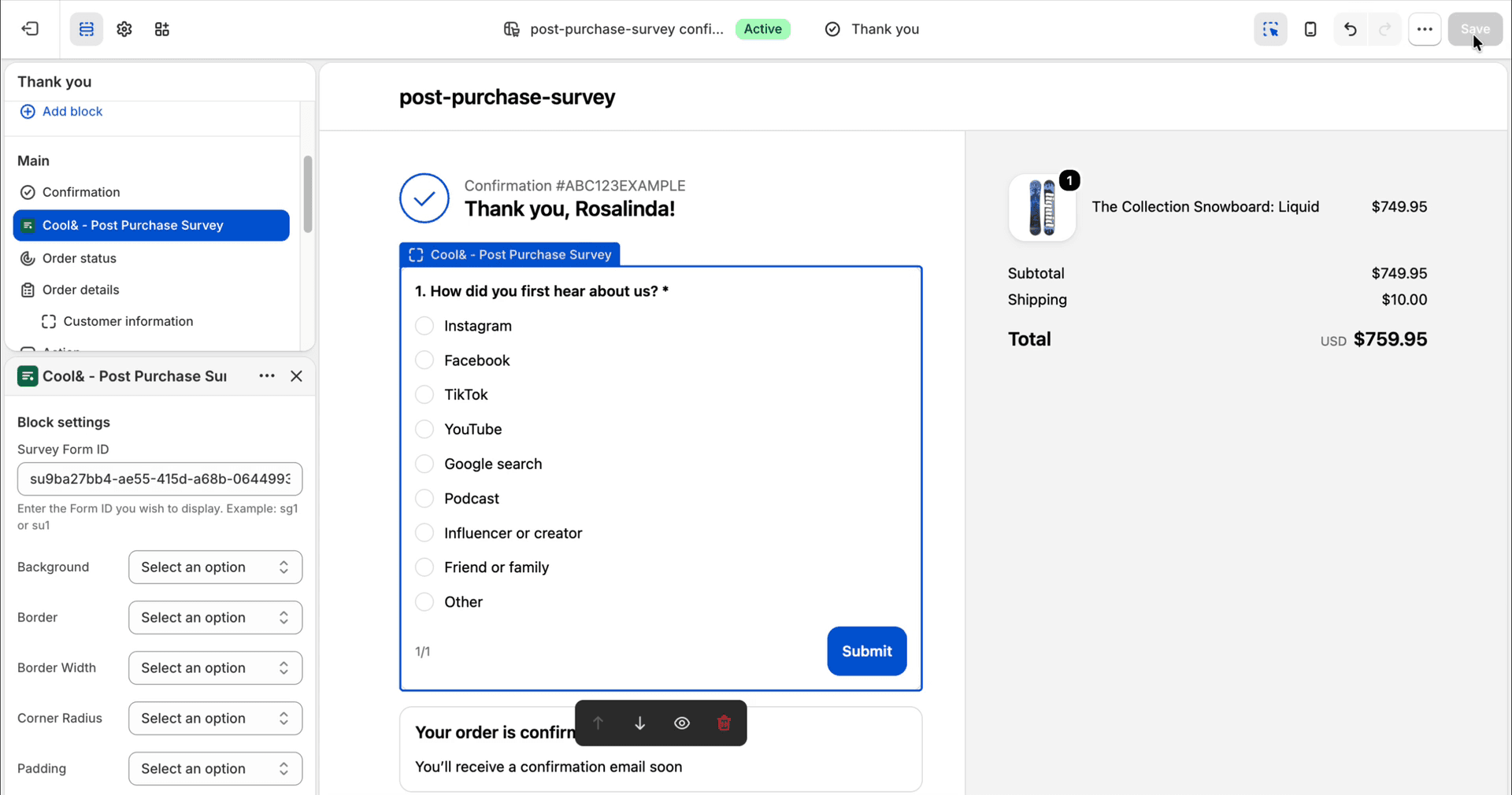
That’s it. There’s nothing to publish in your theme, because the block lives in the checkout configuration, not the theme.
Step 4: test it
Place a test order (Settings → Payments → Test mode, or a 100% discount code) and complete checkout. The survey shows on the Thank You page. Answer it, then open the app: the response is there, saved with the order number, the customer and the order total.
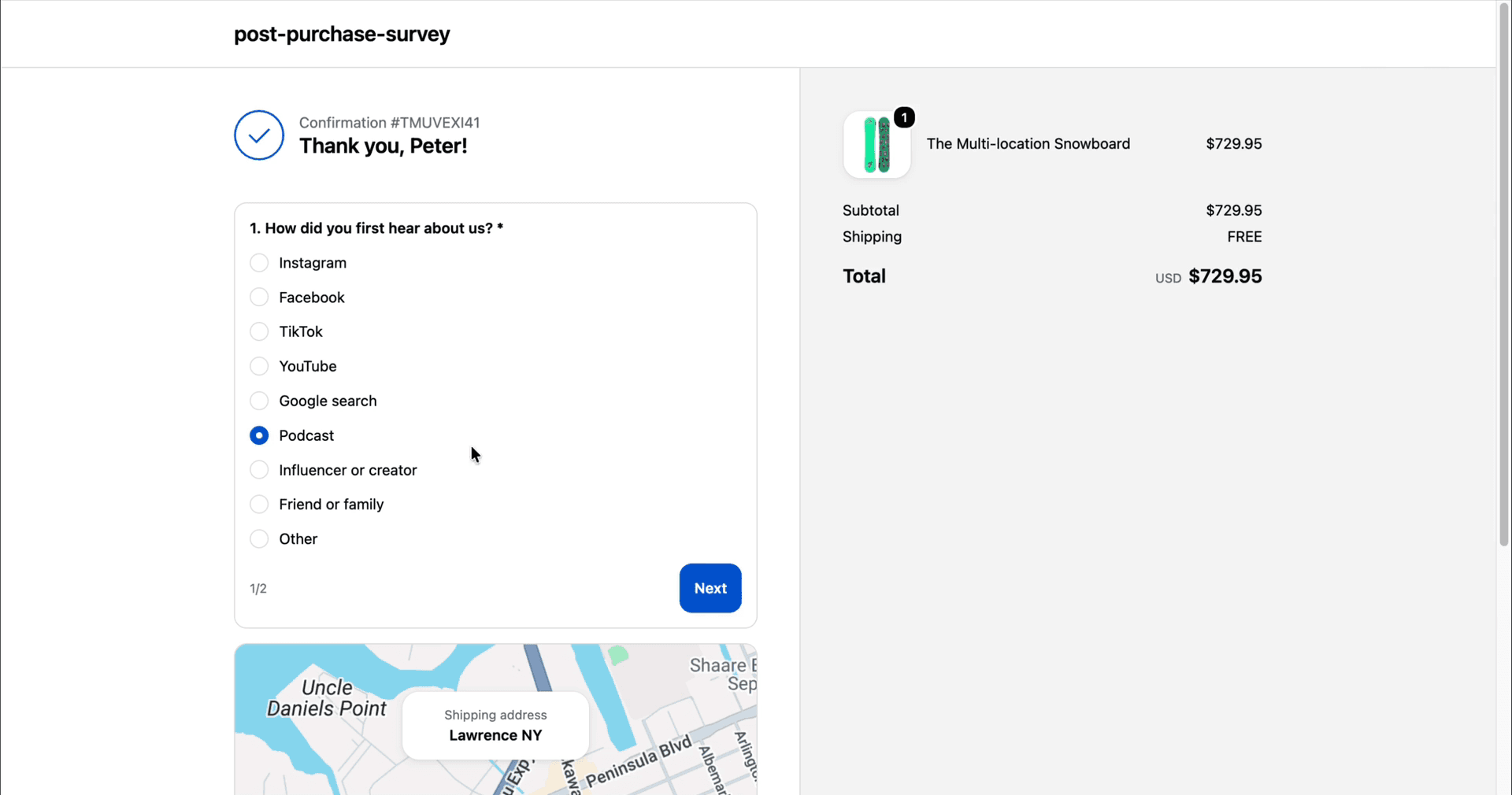
Step 5: read the results
The summary shows each answer with the number of customers who chose it, and the revenue and average order value of those customers. This is the part your analytics can’t do: Instagram may bring the most orders while podcasts bring the biggest ones. Export to CSV, send answers to Klaviyo profiles, or start a Shopify Flow workflow from each response.
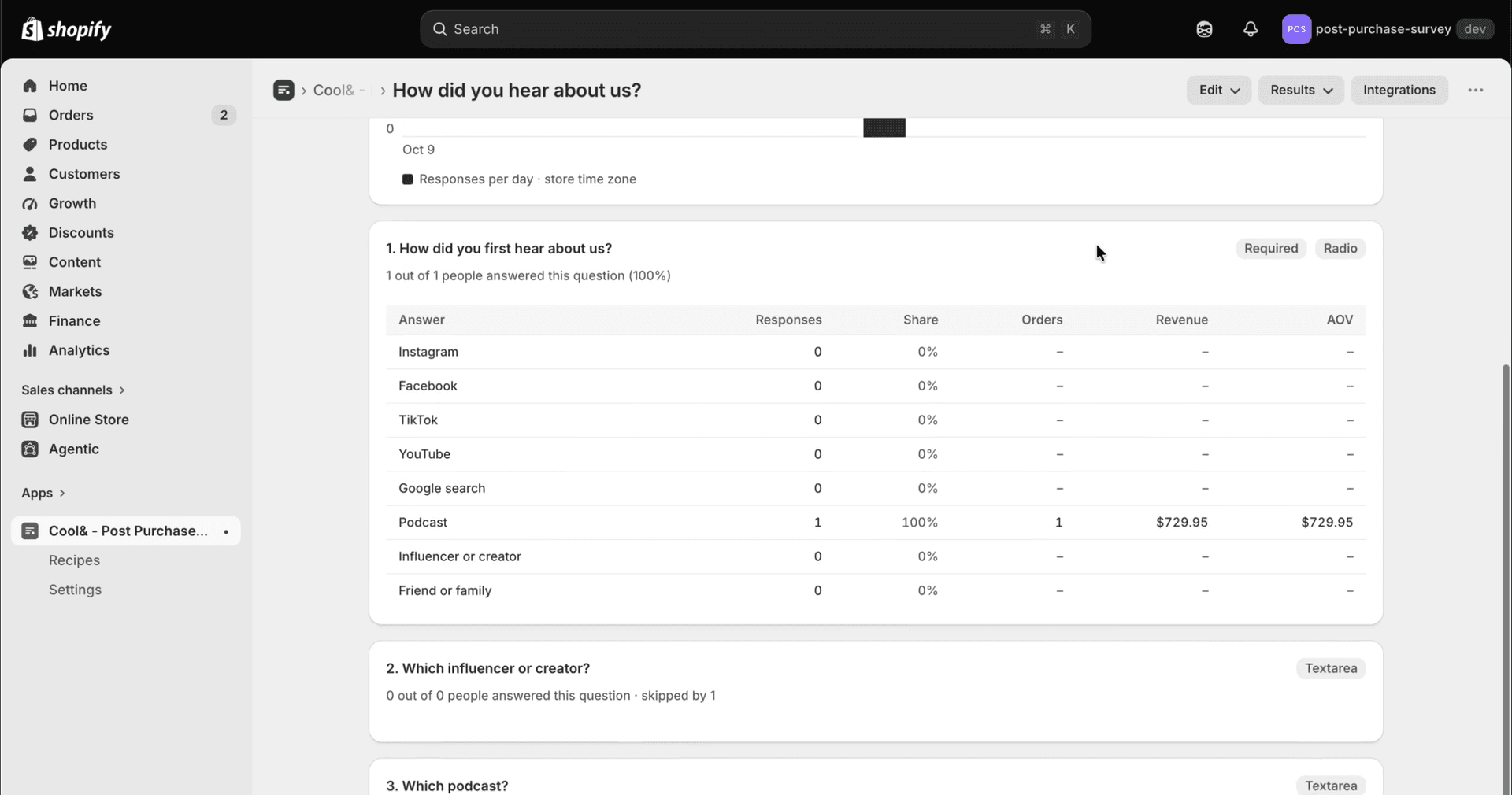
What to ask first
One question beats five. In order of usefulness for most stores:
- “How did you hear about us?” (single choice + Other): attribution your ad dashboards miss
- “What almost stopped you from buying?” (single choice + open text): the doubts that cost you the sales you didn’t get
- “Who is this order for?” (single choice): gifts change your email timing
- “How easy was ordering?” (1–5 stars, with a follow-up on low scores)
- TikTok
- Google search
- Podcast
- Friend or family
- Other
The post-purchase survey question bank has 40 questions with good and bad versions, and “How did you hear about us”: good and bad answer options covers the first one in detail.
Common problems
- I don’t see “Add app block”. Check you’ve switched the page dropdown to “Thank you”, not “Checkout” or “Order status”.
- The block shows but the survey is empty. The Form ID is missing or belongs to an unpublished survey. Publish the survey in the app, then paste the ID again.
- I want different surveys for different customers. Put surveys in a survey group and give each an audience (language, country, products in the order, first or returning customer). One block shows the first survey that matches.
- Will it slow my checkout down? No. The survey loads after the order is placed, as a native checkout extension; nothing runs in your theme and nothing can block payment.
FAQ
Can I add a survey to the Shopify Thank You page on the Basic plan? Yes. Thank You page blocks are part of checkout extensibility, which is available on all plans. Only the checkout steps before payment are limited to Shopify Plus.
Do I need to edit my theme or use Additional scripts? No. Additional scripts on the Thank You and Order status pages were retired by Shopify in August 2026; surveys are added as app blocks in the checkout editor.
Can I show the survey on the Order status page too? Cool& Post Purchase Survey shows the survey on the Thank You page, which every customer sees once. The Order status page can be visited many times, which inflates view counts; if you need it there, check the app you’re comparing supports both targets.
How many questions should a Thank You page survey have? One to three. Each question you add lowers the completion rate on all the others. Use skip logic so follow-ups only appear when they’re relevant.
Does the survey work in other languages? Yes. Write the survey in any language, and use a survey group to show each customer the version that matches their language.
Want to see the whole flow first? Read how it works.
Written with AI, idea and final edit by Peter Coolen.